Showing posts with label fast. Show all posts

Friday, 9 May 2014

Top 10 Ways To Increase Your Laptop Battery Life


1) Adjust You Laptop Power Settings = Power settings must be adjusted so that your laptop will consume less power or you may also use "power saving mode."

2) Adjust Brightness = You "Brightness" of the screen must be lower, so less energy is consumed by the screen.

3) Turn off the sound = Turn off all the sounds like beep and clicking sound and etc. To turn of that kind of sound simply go to control panel then click on sound then click on Sounds tab then under the sound scheme select no sound. That will disable all your unwanted laptop sound except your movies and songs etc.

4) Remove CD or DVD = Never keep CD or DVD in the CD drive when you are not using it.

5) Upgrade You Laptop RAM = The more "RAM" memory will reduce the use of virtual memory and that will reduce the use of virtual memory which will save your laptop battery so use more RAM.

6) Sometime Clean Your Laptop Battery = You must take care of your battery. Clean the leads of battery with alcohol and soft cloth.

7) Use Low Graphics = Using low "Graphics" will reduce the amount of power consumed.

8) Disable Unwanted Services = Disable all your unwanted services like "Bluetooth," "WiFi" etc.

9) Reduce Use Of External Devices = Reduce the usage of external devices like external "Mouse", external Hard drive, Usb drive, Internet connection, "Pen drive" etc.

10) Shut down = Shut down your laptop when you are not using it.It serves an Invisible help to your Back up.

From the Source  completeinfos

Hide Any Files In Android Phone 100% Working By Vaulty.

Every android smartphone users now a day often face a problem of privacy of their files due to their mobile phone is being used by others. Everyone has their own personal Emails, Applications, Pictures, most importantly Videos, etc.. in their mobile phone. Most of us have a few photos or even videos on our Android smartphones that we would like to keep it private. So, if you leave your phone on the table and your girlfriend, wife, parent, friends use your phone they won't see the files you have hidden and you can rest assured they won't find anything.

Although there are lots of security apps and content hide apps are available in the android market but we think "Vaulty" is the best android application among them. It's 100% working also it is very easy to use.

Description of Vaulty : Keep your pictures & videos safe and private with Vaulty. Hide pictures & private videos with Vaulty to keep them protected from prying eyes. Keeping pictures & videos safe, secure and hidden has never been easier. Millions have chosen Vaulty to protect their privacy. Hide pictures and videos from your gallery with free, unlimited picture and video concealment.
You can also lock Vaulty using a pin or text password to guarantee your privacy. If someone tries to snoop in your vault and enters the wrong password, Vaulty will catch a picture of them for you using your front camera. Preserve your precious memories with an automatic online backup of your hidden pictures & videos. If your phone is lost, stolen or broken, Vaulty will restore your vault to your new device.
From the source  completeinfos

How To Root Android Phone Free Without Computer

Root Android Phone equivalent of jailbreaking, means unlock operating system so you can install unapproved unapproved application by Google in your Android Phone, update the OS, replace the firmware, overclock the processor, customize just about anything, and so on.


If you root your Android Phone you can access to the entire operating system and you can do whatever you like do with your Android Phone. That’s essentially what happens if you root your Android device. With root access, you can get around any restrictions that your manufacturer or carrier may have applied. You can run more apps,  you can customize your device to a greater degree and you can potentially speed it up in a variety of ways.

By, Root Android Phone you can also access your entire Android file system, install special Android apps that require a root, and flash custom ROMs, which can add extra features and streamline your Android phone or Android tablet’s performance. A lot of people are tempted by the ability to completely customize the look of their phones. You can also manually accept or deny app permissions.

How To Root Android Phone Free Without Computer?

There are several ways available to root your android phone such as

1. Download some apk Android apps which can root your Android phone.
Download Apps To Root Android Phone

OR

2. Root your Android phone by computer. Best And Safe Way To Root Your Android Phone.
Download PC Software To Root Android Phone


How To Hide Photos And Videos In iPhone & iPad

Every person has a private collections of their own photos and videos and other files on their iPhone that some person wants to keep away from prying eyes or annoying friends who have the habit of digging through your personal stuff. We can not do this directly with our phones, but we have plenty of apps are available to hide photos and videos in iPhone.

1. Private Area :


Private area is the app that lets you categorize and protect all your data, divided by type, within a single database. Using a password, you can hide notes, photos, contacts and Web sites without using native applications on the phone.
2. Folder Lock :


Folder Lock is the iPhone/iPod Touch version of the popular Folder Lock for Windows by NewSoftwares.net, offering full password protection of all your private files. Now you can keep all your private stuff password protected in your iPhone.


3. Hide Calculator :


No need to worry about people accidentally stumbling across your 'special' movies or files any more. What every one sees is just an ordinary calculator, but after you enter the password, you can get access to your secret files.

It is a Safety-Box. It can keep your files safety. It is a Movie-Box. It can Play the all video files converted for use on the iPhone. It is a Suitcase. Support storage any file on iPhone/iPod and copy them to other computer easily. It is a Calculator, It is the most useful utility tool in your life.


4. iDiscrete :

iDiscrete is one of the best known iPhone Apps to lock files, iDiscrete provides users with top of the line performance and security. This digital safe can keep all your files safe and away from anyone else, giving you the peace of mind you need, knowing that all your data is safe.
5. My Hidden Folder Pro :
Hide your photos, videos, contacts and notes from other people! The most advanced security technique and a camouflaged app icon that no one will notice.
 
From the source completeinfos
 

Apple Iphone Secret Codes

* Hi Friends today's so many people are using a apple mobile phones like iphone, iphone 3, iphone 3g, iphone 3gs, iphone 4 and iphone 4s and most of them don't now the secret code of the iphone.

* So here are some secret iphone code for you which you might not know before.

*3001#12345#* = This code is used to displays the inner settings of your iphone.

*#646# = This code is used to displays the minute details of postpaid number.

*777# = This code is used to displays the balance details of prepaid number.

*#33# = This code is used to check whether barring is enabled or disabled for outgoing calls.

*#21# = This code is used to displays the settings of call forwarding.

*#67# = This code is used to check the number for call forwarding if phone is busy.

*#06# = This code is used to displays the IMEI Number of your phone.

*#43# = This code is used to verify if call waiting is enabled.

##002# = This code is used to deactivate all kinds of call diverts.

*#61# = This Code is used to check the number for unanswered calls.

*#62# = This code is used to check the number for call forwarding if no service is available.

*#30# = This code is used to hide or display your identity during calls. You can enable or disable your identification while calling. Your cell phone number is exposed when you activate this service and hidden if you deactivate the same.

From the source  completeinfos

iPhone 6 Features, Specifications

Reports says iPhone 6 will be launched in this June 2014 as most of the iPhones were launched every year in June while some says iPhone 6 will be soon that is in march this year so it's clear that iPhone 6 concept will be the great success of Apple again likely of their later models and this time nobody would be able to stand in market in front of iPhone 6 concept. 
The expected date of releasing iPhone 6 is not specified yet but it is likely to have released in end of the 2014 or in beginning of 2015.
iPhone 6 Features and Specifications: Apple always try to includes something unique and new technology with awesome sleek look and feel into every iPhone generation.
1) iPhone 6 Size and Design: Apple iPhone 6 will with a surprise and more attractive with stylish features compared all the versions released so far. Apple had found a brilliant designer in its senior vice president of Jonathan Ive. His excellence designing in the iPhone's capacity will enhance and make a big difference in the visual and overall appeal of iPhone 6.
2) iPhone 6 Display: In iPhone 6, home screen display may have five rows of icons. The Apple store library is growing on a daily basis, and with the constantly addition of newer applications, Apple may look to accommodate customers and provide more screen space for icon display. The most visible and important change in iPhone 6 is the edge to edge screen in a bid to accommodate larger display in the phone. Apple iPhone always coming with smaller screens compared to that of competitors before the iPhone 5. In iPhone 6 Apple may go in for a even bigger screen than 4 inches as expected and may be the home button removed in the next version.
3) iPhone 6 Camera: Apple iPhone 6 will be the first iPhone will cross the 12MP Camera with HD video recording with high resolution images of Apple's products.
4) Apple iOS 7 With A7 Processor: Apple iOS 7 will also come around the same time, and with each Apple mobile operating system increased complexity and added features create strains on the processor. An A7 processing chipset will be faster than the ubiquitous Quard-core processors will rolled out with sixth generation iPhones.

5) iPhone 6 Will Come With More Memory: The iPhone app store shows no signs of abating in popularity, and without SD card memory expansion in Android phones, Apple will up the phone storage options available. iPhone 6 is expected 64GB and 128GB variants.

6) Better Battery Life: The iPhone 6 use the Organic Radical Battery (ORB) technology has been developed by Japan's NEC which is more eco friendly than current lithium ion batteries that have dangerous heavy metals. ORB also boasts an absurdly fast recharge time about 30 seconds and higher energy density.
7) Near Field Communication: iPhone 6 will come with the Near Field Communication (NFC) this technology advantages for daily life activities that was not utilized in iPhone 5. For example, iPhone users could have used their phones to make payment, for items purchased, at stores checkouts. This technology can be an invasion of privacy given it heavy reliance on data related to personal identification. The user have the option of deactivate the NFC chip when not in use or when they do not want to use it.

Top 10 Best Apple iPad Tablet Alternatives to Use


Apple has become quite a trend-setter when it comes to design. First the “iPod” gave birth to a whole new world of portable music players, then the “iPhone” emerged a new generation of mobile phone devices, and recently came the “iPad”, which started turning heads towards touchscreen mobile computing (that already existed).

Although it’s almost guaranteed that the Apple iPad will sell well, there are still many complaints about the lack of various features such as multitasking (which might appear later this year), and the lack of flash support, pen input amongst other things.
It happened with the iPhone and it looks set to happen again with the iPad; consumer electronics manufacturers are rushing to bring out their own touch-screen tablet computers, with the latest being the WePad from German company Neofonie. Here, we round-up some of the most likely ‘iPad killers’!
So wait! The iPad isn’t the only game in town. Sure, it might have a fancy-pants interface, but each of the follow ten tablets win the hardware fight, which is just as important to a lot of consumers. As interesting as the iPad is, no matter what Apple wants us to think it’s by no means the first tablet. What better way to share the tablet love than to give you 10 alternatives to the iPad, which could easily be deemed as serious iPad Killers.

So without further ado, check out these ten iPad alternatives to see which suits you best. Some of these offer features the iPad doesn’t have or can deliver what the iPad can but for less money.
1. Archos 9 PC Tablet

Archos has been a major player in the MID market since it started. The Archos 9 PC Tablet is the company’s largest slate device to date. It also proves that Apple isn’t the only one to out beautiful looking devices. With a price tag starting at $549, the Archos 9 PCTablet it is a great device and looks awesome. It comes with an Intel Atom Z510 1.1 G Hz processor, 1GB on-board RAM, and is available in two models, 80GB and 160GB. The high-resolution 9-inch touchscreen and the two positioned leg-stands make the Archos 9 perfect for media and hands-free viewing without having to purchase additional accessories.
It runs Windows 7, supports full-HD video playback, has a webcam for Skype calls and video conferencing and, unlike some other tablets we could mention (we’re looking at you, Apple), it’s compatible with Flash technology. Usability, however, leaves a lot to be desired when compared to the iPad.
2. Compal Tablet

This working prototype was shown off at CES 2010. Made by Compal, the 7-inch Android 2.0 tablet runs on the new, high-powered next-generation Tegra 2 processor NVIDIA announced at CES. With this chip, a device can support 1080p video playback, yet retain startlingly good battery life. NVIDIA says it already has several partners lined up to make Tegra 2-based tablets, so expect more of this type of device in the near near future.
3. Dell Mini 5

The Dell Mini 5 is the smallest tablet on the list with its 5-inch touch screen, but that just adds on to its ease of use. The device comes with a speedy 1GHz Snapdragon processor with WiFi, 3G and bluetooth connectivity. But the feature that really stands out is its ability to make phone calls (It’s like a big iPhone, or a small iPad that makes calls and fits in your pocket). Oh yeah, there’s also a 5MP camera on board.
4. Fusion Garage’s JooJoo

With it’s 12-inch screen and onboard camera, the JooJoo is a worthy iPad competitor. It supports Flash and achieves 1080p video streaming. The Intel Atom / NVIDIA Ion powered tablet has a great interface and more processing power which gives the user an awesome visual experience.
5. Google and HTC Tablet
Google is already crossing swords with Apple on the mobile operating front – its Android operating system and Nexus One handset compete directly with the iPhone – so it comes as little surprise that the company is also seeking to build a tablet computer based on the Android platform. Eric Schmidt, Google’s chief executive, said his company had been working with several hardware manufacturers, and hoped to make its Android Marketplace available on other slate-like devices. Google is thought likely to partner with HTC – the company behind the Nexus One – for any tablet computing initiative.
The cited report says the Google Tablet has already been in development for the past 19 months. HTC is a plausible logical choice for the trusted partner as well, given its existing relationship with Google and the Android operating system. Still, with nothing yet official on the books, the Google Tablet is the most speculative entrant on this list for now.
6. HP Slate
Steve Ballmer, chief executive of Microsoft, took the wraps off the Slate during his keynote presentation at CES earlier this year. The HP device is due to go on sale later this year. It runs Windows 7, supports the Kindle e-book reader app, it’s multi-touch, and can even play games. Rumours suggest prices will start at around $549 – around $50 more than Apple’s entry-level iPad.
7. ICD Vega
Seattle-based startup Innovative Converged Devices announced its Vega tablet back in November 2009, and now the device is officially headed to T-Mobile UK sometime before the end of 2010. Yet another tablet based on Android, the Vega will have a large amount of screen real-estate at 15.6-inches. Check out the full spec list here.
8. ModBook
The ModBook is the original Apple Tablet — besides the Newton of course. Except it’s not made by Apple proper, but rather Axiotron who has been making them since 2007. The ModBook by Axiotron is an iPad and then some, including its Wacom-enabled 13.3-inch screen which you can write directly on for easy note taking. With a 120 GB hard drive, built-in camera and optical drive, the tablet is worth considering. It supports Flash, capable of multitasking and it’s even Windows compatible. Prices start out at $899, but customers have to provide a pre-polycarbonate unibody Macbook making the total price closer to $2,000.
9. Neofonie WePad
The WePad may be the most complete alternative to the iPad with Linux at the core and access to the Android Marketplace. WePad is priced a bit lower than the iPad and comes with a web cam and 2 USB. Its 11-inch screen, faster processor, and bigger RAM makes performing multiple tasks a bit easier. And of course, it supports Flash!
10. The Notion Ink Adam Android Tablet

News about the Notion Ink tablet broke late last year and many chalked it up to a fanboy dream. But it’s real and supposed to be coming this spring from Indian startup Notion Ink. This is another tablet running Android and powered by the Tegra 2 chip and a 10-inch tablet. It uses a screen technology from Pixel Qi that combines the best of a full color multi-touch LCD display with a low-power reflective mode that’s readable in direct sunlight.Notion Ink says the Adam should come to market in the second quarter of this year, with a target price somewhere between $300 and $800.
With its sleek design and 10-inch touch screen, the Notion Ink Adam Tablet is to be desired. It also boasts a 16-hour battery life and 3MP camera. Also unlike the iPad, the tablet features a browser that supports Flash. Maybe the most striking is the Adam’s revolutionary Pixel Qi screen. The transflective LCD screen can switch between color and black and white modes for e-reading.

From the source  all-multimedia-solutions

How to upgrade iPhone 5 to iOS 6.0.1 for jailbreaking to get more powerful and customized features


iOS 6.0.1 is a major bug fix update for your iOS device. Since the release of iOS 6, there are some bugs troubling users. iOS 6.0.1 will update all major bugs, including Wi-Fi bug and keyboard bug. To get more powerful and customized features on your iPhone 5, you need firstly to upgrade your iPhone 5 to iOS 6.0.1.  The below is a short guide on how to upgrade iPhone 5 to iOS 6.0.1 in a few simple clicks. You can upgrade your iPhone 5 freely.
Step 1: Launch the settings app, tap on General, and then your software will be updated.
upgrade iPhone 5 to iOS 6.0.1
Step 2: After that, you can see a message, tap on Learn More to start the process to fix a bug that prevent your iPhone 5 from updating over the air.
Step 3: Download and install an iOS updater app, tap on Download and install.
iOS updater
Step 4: You can see a new icon on your device, you need to restart your iPhone 5 before tapping on it, press power button and turn it off, then back on, or press power and home button to reboot.
update iOS
Step 5: After you've rebooted iPhone 5, tap on iOS Updater icon, then tap Ok, you'll follow the update process on your iPhone 5.

5 Tips to Make Your iTunes Work Better on Mac OS X


Originally designed as a basic MP3 player based on SoundJam in 2000, Apple iTunes has grown to be a full-fledged media player and app center. It now acts as a movie and music media player, digital media distribution center and repository of all iOS apps.
iTunes

Without doubt, iTunes is still a pretty decent media player, even if at times it feels rather bloated when your music and movie collection grows out of control. However, like anything else complex, it can be a little tricky to figure out how to use iTunes most effectively on your Mac OS X computer. Here are five simple yet helpful tips and tricks to help you get the most out of your iTunes experience.

Find and Delete Duplicate Songs From iTunes On Your Mac
delete iTunes duplicate songs

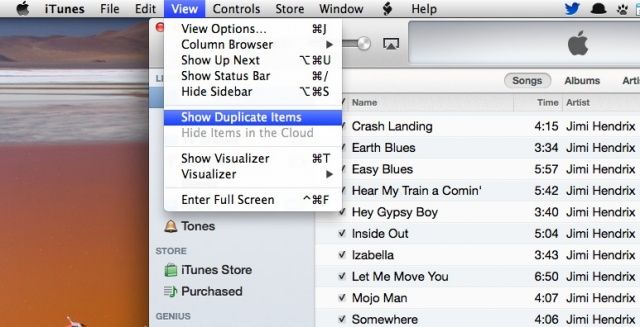
One of the changes in iTunes 11, which debuted in November of last year, was the loss of a “find all duplicates” feature that was really handy for finding and deleting duplicate files in our rather voluminous iTunes libraries. Luckily, Apple re-included the feature in the latest version of iTunes 11, version 11.0.1. Here’s where to find it, and how to use it to help yourself clean up that iTunes library.
Once you have iTunes launched, head up to the View menu and choose “Show Duplicate Items.” The iTunes media window should then update, showing you all the files that are considered duplicates. The list will include all versions of the files that seem to be the same, so be careful you don’t just Select All and Delete.
To decide which files to delete is very necessary. If they’re exact duplicates, it won’t matter. The best way to figure out whether they are is to use the Information window, which can be brought up with a Command-click on each of the duplicated files, then hitting Command-I on your keyboard. Click over to the Info tab and then use the arrows in the lower left to flip through the info about each file. If you don’t notice any difference in bit rate or encoding, or whatever might change from one file to the next, you have perfect duplicates. Delete either one. If, however, you see that one file is at a lower encoding rate, or is perhaps a lower-quality recording, get rid of that one.
Actually, there’s better way to help you find and delete duplicate songs from iTunes on your Mac OS X computer. That’s to make use of third-party iTunes cleaner program, like the Tunes Cleaner for Mac, which does exactly a great job for you to delete duplicate songs in iTunes on Mac.
Multiple Artists–Building A Better Smart Playlist
customize iTunes playlist

Smart Playlists are fantastic, and they really do work to help you listen to the kind of music you’re in the mood for, using a variety of user-controlled criteria. You can create a Smart Playlist for any given Artist in your iTunes library fairly easily.
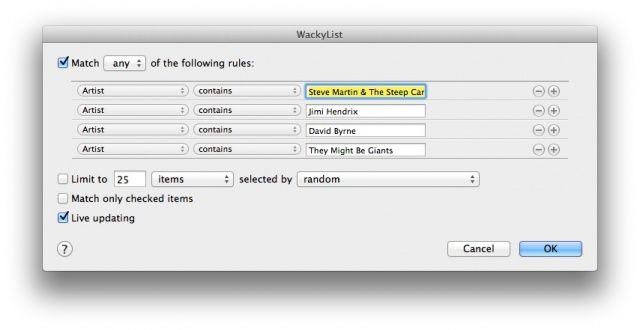
But how to create a playlist that includes more than one Artist? Take the iTunes 11.0.2 for example. First up, launch iTunes. Click on the iTunes menu, and choose New, then Smart Playlist. The dialog box that shows up will look familiar to anyone who’s created a mail rule/filter before. Fill in the first artist you want to include in your Smart Playlist (iTunes will try and autofill from the Artists in your collection), and then click on the plus button to the right. A second Artist field will show up. Fill in the second artist you want to add, and hit the plus button for every new artist you want to include in your playlist. Then, above, where it says “Match all of the following rules,” click on the word “all” and change that to “any.” Feel free to limit the number of items or time, and allow for Live updating if you want the Smart Playlist to include new music you add after you’ve created it.
Click on the OK button in the lower right, and you’ll get to name the playlist in the sidebar, which just calls it “playlist” by default. Name it how you want, hit Return, and then you’ve got a playlist that includes music from any of the artists in your ruleset.
Make A Visual Playlist For Your Party With An Album Artwork Screensaver
get album artwork for iTunes
One of the trickier things about creating a playlist for any party is making sure you have the right music for the people you’ve invited. Sometimes, though, you might want to give this entire nerve-wracking process a miss, and let the guests at your house choose the music from all the songs and artists you have in iTunes on your Mac.
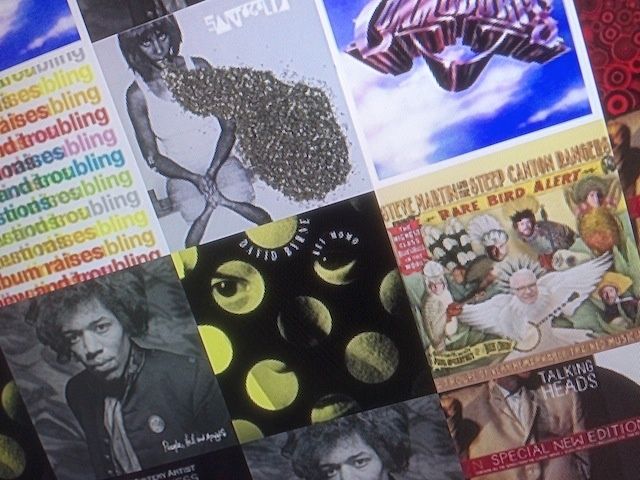
Here’s how to do just that, using nothing more than your Mac and the iTunes Album Artwork screensaver. Firstly, launch System Preferences from the Dock or the Apple Menu. Click on the Desktop & Screensaver icon to go to that preference pane. Scroll down the left-hand column until you see the iTunes Artwork screensaver. Click on it, and then click on Screen Saver Options… to set the number of rows and a delay. Click on OK.
If you’ve set your Hot Corners… to have one of them start your screensaver, do that now. If not, wait the amount of time you have your screensaver set to. Once the iTunes Artwork screensaver starts, you can now move your mouse around without waking up your Mac. You can click on any of the albums showing up on the screensaver to play that song. Bam–you have an easy, guest-controlled jukebox for your party.
You’ll need to clear the Up Next playlist in iTunes for this to work when using iTunes 11.
Customize What You See In The Sidebar
iTunes preference

If you’ve only recently upgraded to iTunes 11, you might be wondering where some of the features you relied on are? If you’re looking for Podcasts or Radio in the Sidebar, you might not see them right off. Luckily, the fix is fairly easy, and it’s also a great way to customize what you do see there, letting you get rid of things like iTunes U, Ringtones, and other stuff that you may not even have an interest in.
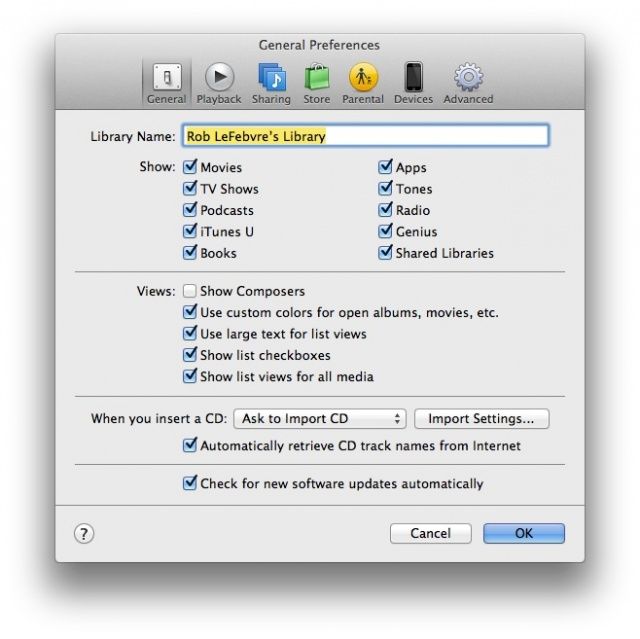
First, launch iTunes 11 from your Applications folder or Dock, and then head up to the iTunes menu. Choose Preferences with a click, or just hit Command-Comma on your keyboard. Once there, click on the General tab to the far left and you’ll see a section marked “Show:” just below the library name. Click on any of the types of media you want to see, like Radio and the Podcast media, and then click OK at the bottom of the window. If you don’t want to show stuff, like iTunes U or Ringtones, simply click the checkboxes off, so they’re no longer checked or blue.
You’ll now see the Podcast tab in the sidebar, and the Radio tab above your media when viewing the Music tab. I’m not sure why the Radio section will not show up in the sidebar, or why the Podcast button will not show up across the top. You can also hit Command-4 to bring up your podcasts. Seems as if Apple is still struggling to unify things with the latest version of iTunes.
Password Protect Your Shared Music and Movies
iTunes sharing via passwords
If you share your songs and movies via iTunes on your home network, you might not want just any old people to access your shared media or playlists, even if you let them onto your Wi-Fi. While iTunes lets you share all the types of media it can serve up, maybe your kids or office mates don’t need to listen to those hardcore rap tunes.
It’s fairly easy to protect your shared items with a password, using the iTunes Preferences. Launch iTunes, and then open Preferences from the iTunes menu, or hit Command-Comma on your keyboard. Click on the Sharing tab at the top, and (as long as Sharing is enabled, of course) click on either the “Share entire library” radio button, or the “Share selected playlists” button. If you choose the latter, click on the checkboxes next to the specific media or playlists you’d like to share. That way you can just share music, or movies, or iTunes TV shows, if you like.
Once that’s taken care of, click on the “Require password” checkbox, and type in a password that you’ll remember, and you’ll be able to share with the folks you’d like to give access to. Or keep it to yourself for private iTunes sharing, you selfish meanie. Don’t use your Mac’s admin password or any other secure password that you don’t want to share. When finished, click on OK.

From the Source  all-multimedia-solutions

Top 25 Most Popular and Free iPhone Apps for iPhone 5, iPhone 4S, iPhone 4 and other iPhones


Apple’s App Store recently hit its 50 billionth download. Since its launch in July 2008, the store has been the go-to place for mobile apps. To this day, mobile developers often choose to release their apps here first. Popular from the start, just seven months after the App Store’s launch, the store surpassed one million third party apps, many of those free.
free iPhone apps
Alongside its most recent and successful numbers, Apple released a list of its most 25 most-downloaded free iPhone apps of all time. A greatest hits list if you will from the past five years, the list contains a few apps you might expect — such as Facebook and Pandora — as well as a few you might not realize were so widely popular.

Check out Apple’s list in the gallery below, and let us know your favorite free iPhone apps in the comments.

1. Facebook
Facebook’s app gives you full access to the social network, where you can upload photos and status messages, check out your News Feed and friends' profiles, and send messages to people either via instant message or email.

2. Pandora Radio
Pandora’s mobile app makes it easy to rock out, no matter where you are. Create radio stations and listen to ad-supported tunes for free for 40 hours a month. If you reach the 40-hour cap, continue listening for the remainder of the month for $0.99.

3. Instagram
Instagram improves the look of your mobile photos. Give your image a vintage or professional look with the app's built-in filters.

4. YouTube
Where can you catch the latest cat video, plus a message from the president in the same place? YouTube’s app makes it easy to stream the videos you love directly to your mobile phone.

5. Skype
Keeping in touch has never been so easy. With Skype, contact with friends and family around the world. The app supports voice and video calls, as well as texting, in many cases for free.

6. Words With Friends Free
Words With Friends Free is the ad-supported version of the Scrabble-like game by Zynga. In the game you can compete against your Facebook friends, others using the service and strangers.

7. The Weather Channel
The Weather Channel’s app gives you accurate, up-to-the-minute weather conditions for your area and beyond, as well as a forecast for the future.

8. Twitter
Twitter’s mobile app ports much of the functionality of the web network to mobile. From the app you can explore tweets, see what’s trending and post your own tweets to add to the conversation. The app also allows you to tweet photos, and has a built-in photo editor for making those pictures look their best.
9. Temple Run
Temple Run put infinite-runner games on the map. In the game, run until you can’t run any longer while dodging obstacles. Since the launch of this original game, the studio has put out a sequel, Temple Run 2, as well as Brave and Oz-themed versions, in partnership with Disney.

10. Google Search
Need to look something up? Google Search is the ultimate app for performing web searches on your iPhone.

11. Netflix
Whether you want to watch a quick episode of your favorite television show, or settle in and watch a feature-length film, Netflix’s app makes it easy to stream TV shows and movies to the palm of your hand. Use of the app requires a subscription to Netflix’s streaming service.

12. Shazam for iPhone
What’s that song? Shazam’s app identifies the music playing around you.

13. Angry Birds Free
Who doesn’t love Angry Birds? This free version of the high-flying game is ad-supported, allowing you to play for free.

14. Draw Something Free
Pictionary goes mobile with Draw Something. Draw a picture, then send it to your friend so he or she can guess what you drew. Originally launched by OMGPOP, the game was later acquired by Zynga.

15. Flashlight
Having trouble finding your way around? Flashlight turns your phone into a mobile light, brightening up the area around you so you can locate items in the dark.

16. Facebook Messenger
Facebook Messenger is the messaging portion of Facebook, broken off into its own standalone application. The app also contains Chat Heads, a unique way of conversing with your friends -- their faces appear in small circles on the screen.

17. Google Earth
Want to take a quick trip to Paris? How about to the house where you grew up? Google Earth lets you see the world through Google’s cameras, giving you a bird’s-eye view of the earth as a whole, and a close-up view of any location you choose – all in the palm of your hand.

18. Fruit Ninja Free
With Fruit Ninja, slice and dice fruits as they fly across the screen. The more fruit you're able to chop while avoiding obstacles, the higher your score.

19. iHeartRadio
Miss your radio station from back home? iHeartRadio lets you tune in to listen to Clear Channel radio stations around the country, all from your mobile phone.

20. Movies by Flixster, With Rotten Tomatoes
Want to know whether that latest movie is a must-see? Flixter’s app with Rotten Tomatoes makes it easy to read reviews, while you’re on your way to the theater.

21. Bump
Want to transfer a photo from your phone to a friend? How about some cash? Bump lets you tap two phones to transfer data. Or use the app along with your computer, for transferring images from your phone to PC.

22. eBay
Whether you’re buying or selling, eBay’s mobile app has the tools to help you get things done. The app makes it easy to list items for sale, as well as bid on items you might want to own.

23. PAC-MAN Lite
Pac-Man comes to the iPhone in this free version of the popular arcade game.

24. Groupon
Groupon’s mobile app lets you purchase deals while you’re out and about. You can score bargains – often 50% off or more -- on restaurants and attractions while you’re at them, no planning required.

25. Google Maps
Although Apple removed Google Maps from iOS, the mobile app made a splash when it returned to the App Store. Unlike Apple’s built-in Maps, Google Maps offers public transit information.
 
From the source  all-multimedia-solutions

13 Best Weather Apps for Android and iOS Devices


Weather is an integral part of the day. It can affect what you wear, what you do and how you get to work in the morning. Forecasts, then, need to be accurate and easy-to-understand — if only to avoid having a Big Gulp thrown at your face. With the amount of data available, there's a lot of potential for beautiful and user-friendly apps.
We rounded up our top weather apps that combine accurate statistics with clean user interfaces. Take a look at the gallery up top. Any good ones we missed? Let us know your favorites in the comments section.
Weatherbug
Weatherbug, available for free on Android and iOS devices, is a comprehensive app with easy-to-use slide-side navigation. The app includes real-time updates and an interactive map for detecting location. It also has photos and live cameras from specific locations.

AccuWeather
The AccuWeather app is available for iPhone, iPad and most Android phones and tablets. It has easy-to-read displays, including side-by-side vertical displays of Now, Hourly and Daily conditions. Customize the app for information on specific health concerns and other personalized data. AccuWeather also stores multiple customized locations, with links to videos, news stories and satellite radar.
Yahoo! Weather
Yahoo!'s weather app, available on Android and iOS devices, is ideal for those who want something that's easy on the eyes. The app aggregates photos straight from Yahoo's Project Weather on Flickr, then matches current weather conditions with appropriate art. Aside from user-generated photos, it also features simple icons and design, such as its "Sun & Moon" feature that shows rise and set times.
Solar
Solar is a minimalist iOS app for those who value an aesthetically pleasing interface. The app shows simple data against colorscapes that correspond to the sky and temperature conditions. Slide down for an extended forecast, or slide up to see the colorscape and data change by the hour. Keep track of multiple locations as well.
Living Earth
Living Earth is a stunning app with impressive graphics. It's available for iPhone and iPad (though best viewed on the latter); it features a live 3D simulation of the world that you can interactively spin, pinch-and-zoom and keep stable. Tap for stats and numbers, or tap again to see the visual of the globe.
Switch between various views of the world, including Current Cloud, Temperature, Humidity and Wind conditions. Set the globe view to Forecasts to see predicted conditions on a world-scale and see which parts of the planet are currently illuminated by the sun.
Weathertron

Weathertron is an iOS app that visualizes a minute-to-minute forecast with interactive graphics. Swipe across the timeline to see temperatures and precipitation for different times of the day. View the week's forecast with a graph that visually compares temperatures of different days.
Forecast.io
Similar to Dark Sky, Forecast.io features a fluid radar and an up-to-the-minute forecast. It's also a web-based app: view the radar by global, regional or local windows. Forecast.io also has many useful graphs to illustrate the forecast, allowing for visual comparisons of precipitation and temperature between days. Immediately see which day of the week will be the hottest and when it's supposed to rain, too.
Today
Today has a combination of features for a full weather app experience. The overview panel has basic data from your list of saved cities, the week's forecast displays temperature and conditions in a colored graphic (based on NOAA temperature gradients.)
Weather 2x
Weather 2x, available for iPad, iPhone and iPod Touch, features a full-screen retina display on all devices. The app has a smooth user interface: swipe right for your saved cities, and left for an hourly forecast. Pinch the center of the screen for a weekly forecast or tap to switch between stats.
Dark Sky
Dark Sky, available for iPhone and iPad, features a fluid radar that won't glitch. The app also features up-to-the-minute forecasts -- perfect for those who need, like, now.
Weather Live
Weather Live, available for iOS and Android devices, animates current conditions in the background with real-time stats in the foreground. The app includes current temperatures as the home screen's icon. Customize the view and specific stats as you please. Weather Live also features radar maps -- cloud, satellite and rain.
Clear Day
Clear Day is available for iPad and iPhone. The app features weather videos and 3D weather maps; an additional iPhone app, Clear Day Pal, features an alien that gives you detailed weather reports. The former aims to sooth with fullscreen visuals, and displays weather conditions for multiple locations at one time. Clear Day is also available for Mac, and includes quick access to forecasts via a menu in the toolbar.
Swackett
Swackett, available for Mac, iPhone, iPad, Android and the web, features simple stats: current temperatures and "feels-like" temperatures, plus cartoons of what you should wear outside in current conditions. Swackett V2 also has multiple editions, including UV index and dog-walking editions. There are also fun themes like the undergrad, 1950's and British Invasion editions.

Tilt your phone sideways for a weekly forecast; or, access more features, like a radar and suggested activities based on current conditions.

From the Source  all-multimedia-solutions

Top 10 Best iPhone 5 Tips and Tricks

  Make Your iPhone 5 More Enjoyable

Are you someone who was lucky enough to get your hands on one of the brand new Apple iPhone 5 mobile devices? Then you’ve got a brand new phone that you may not know every single thing about. If you need a few tips and tricks to make your iPhone 5 experience even better, check out what we’ve learned about the device so far. We’ve compiled a list of some of the best tips for you to get the most out of the new features Apple has added to iPhone 5 (iOS 6). Some are new, some you might know already, but we can promise this: all will help you get more out of your phone.

Photo and Video Tips
Want to insert photos into mail?
Open up the mail app and select the icon to compose a new mail item. Place your finger in the body of the mail message and hold. A menu will pop up that will say “Select, Select All, and Paste.” There should also be an arrow to the right that you can hold down. The option to insert photo and video will then appear and you can easily choose the picture that you would like to insert.

Sharing videos on YouTube is easy and simple
You’ll notice that the YouTube app is no longer already on your iPhone 5, but you can still upload videos to the site very easily. Choose the video that you would like to share, press on the icon for sharing and select YouTube from the menu.
The new camera app has an awesome panorama mode
Select panorama mode and then select whether you want to move right to left or left to right. Hold your phone in landscape position and pan in the direction you have selected for cool panoramic shots.
Turn on Shared Photo Streams
One of the new features in iOS 6 is the ability to share Photo Streams with others. To do this go to Settings > Photos & Camera. Then toggle the Shared Photo Streams option.
Siri
Siri gets new tricks and instructions for you to bark at it. Here’s a couple to help you get the football scores quicker.
Launch apps with Siri
Click and hold the Home button and say, “Launch Music”, or “Safari”, or “Facebook” and Siri will open up the app you’ve asked for.
What’s on at the movies?
You can also ask Siri what’s on at the movies. Simply say, “What’s on at Odeon Cinema Bracknell today” or wherever you live and it will go off and get movie details for you
New Map Tips
Maps have changed as well on the iPhone 5. You’ll no longer have the GoogleMaps app right there on your phone, but you can still do a number of cool things.
Satellite mode.
There are a couple of cool things that you can do in this mode. First, you can see buildings in 3-D in cities all over the world. This flyover option is very neat and different. Simply click on Apple Maps, place your phone in satellite mode and press the “3D” icon that appears in the bottom left hand corner to see cities like you never have before. You can also see a map of the entire world in the palm of your hands by selecting satellite mode and then pinch to zoom out.
Flyover
To see major cities in 3D with all the Sim City-like buildings, you need to find the city you want to view, make sure you are in satellite mode, and then press the “3D” icon in the bottom left-hand corner of your screen.
See the world
Open Apple Maps, make sure you are in satellite mode, pinch to zoom out as far as you can, and you’ve got the whole wide world in your hand
Hopefully, these little tidbits of information can help you to learn a little bit more about your brand new Apple iPhone 5 and make your experience that much smoother.